How to Create a QR Code for Free: A Complete Beginner’s Guide
Create a free QR code for a website or text with Toolzafi. Learn how to download, scan, test, and print it, plus what static QR codes can and cannot do.
To create a QR code for free, paste a website address or short message into a QR code generator, generate the image, and download it. Before sharing it, scan the finished code to make sure it opens the right page or displays the right text.
You do not need design skills or a special app to make one. This guide walks through the process with Toolzafi, then explains how to use the result on a menu, poster, business card, or screen without making it difficult to scan.
What Is a QR Code?
A QR code is a square pattern that stores information in a form a camera or scanner can read. Instead of typing a website address, someone can point their phone at the pattern and follow the link it contains.
The code and its destination are different things. A code containing a website address stores that address, not a copy of the website. The person scanning it generally needs an internet connection to open the page. A code containing a short message stores the message itself; a compatible reader can display it without visiting a website.
Think of a QR code as a convenient way to hand someone information. It does not automatically check whether that information is correct, whether a link works, or whether a website is trustworthy.
How to Create a QR Code for Free
Toolzafi’s current generator accepts a link or text and produces a PNG image. You can use it without signing up. Here is the full process, including the checks that are easy to overlook.
1. Choose what people should see
Decide on one clear destination or message. For a website, open the intended page and copy its full address from the address bar. Include the beginning, such as https://, rather than entering only a business name or a search term.
If you want to share a menu, copy the address of the published menu page. A file path on your computer will not give customers access to that file. For a document stored online, check its sharing permissions before turning its link into a QR code.
For text, keep the message short and useful. For example: “Workshop check-in: Reception desk, ground floor.” Do not put private information into a code that will be displayed publicly.
2. Enter your link or text
Open the Toolzafi QR Code Generator and paste your content into Link or text. Read it once before continuing, especially if you typed the address yourself.
The field allows up to 1,000 characters. That is an input limit, not a reason to fill the entire box. A short direct address is usually more practical than a long paragraph. Encoding limits also depend on the characters entered; if generation reports an error, try reducing the content.
The tool does not provide separate forms for Wi-Fi credentials, contact cards, or payments. For a first code, use a normal website address or a simple text message.
3. Generate and check the preview
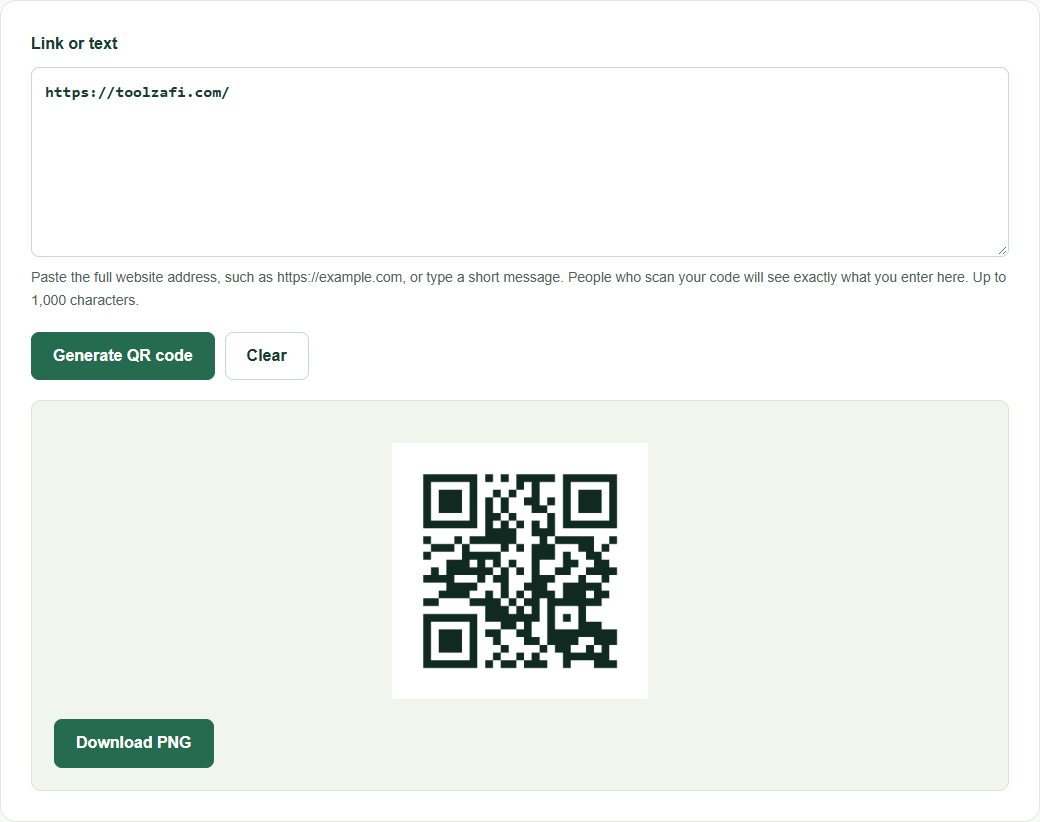
Select Generate QR code. The tool creates the image and shows a preview underneath the controls. Its current appearance is dark green on white, with a white border around the pattern.
If you change the input, the old preview disappears. Select Generate QR code again to create an image containing your revised information. This helps you avoid downloading the previous version by mistake. Clear removes the input and result so you can start again.
4. Download the PNG
Select Download PNG to save toolzafi-qr.png. The downloaded image is 768 by 768 pixels; the on-page preview is smaller. Use the downloaded file in your design rather than taking a screenshot of the preview.
Rename the file if you are making several codes, for example cafe-menu-qr.png, so you can identify it later. Renaming the file does not change the information inside the code. Keep a note of its destination alongside your design files.
5. Scan it before sharing
Test the downloaded image, then test it again after placing it in your final document or design. A successful scan of the original preview does not prove that a tiny or cropped copy will work on a printed card.
For a quick practice run, enter https://toolzafi.com/ in Link or text and select Generate QR code. The screenshot below shows the resulting preview. Select Download PNG, open the saved image on another screen, and scan it with your phone. Check that the detected address is https://toolzafi.com/, then open it to confirm that it leads to the Toolzafi homepage.
What Can You Use a QR Code For?
Start with a situation where typing a link would be inconvenient. Useful examples include:
- Menus: Link a table sign to a mobile-friendly menu page. Keep that address stable when you update prices or dishes.
- Posters: Send readers to event details, opening hours, or a registration page. Add a short label explaining what scanning will do.
- Business cards: Link to your website, portfolio, or public contact page instead of trying to fit everything onto the card.
- Product instructions: Point customers to a setup guide they can read on their phone.
- Short messages: Share a room location or a brief instruction as text when there is no web page to open.
QR codes can carry specially formatted information that compatible apps interpret as contacts or other actions. Toolzafi’s current interface focuses on entering a link or text; it does not offer dedicated contact-card, Wi-Fi, or payment setup. Linking to an existing contact page is a straightforward option it does support.
If you are sharing the information in an email or on a web page, include a clickable link too. Someone already using their phone may find tapping that link easier than scanning a code displayed on the same screen.
How to Test Your QR Code
Display the downloaded image on one device and scan it with another. On an iPhone, open Camera in Photo mode, frame the code, and tap the detected link. Apple’s scanning instructions explain the built-in camera option. Other phones may offer scanning through their camera or a dedicated scanner control; the exact steps depend on the device.
Check the result, not just whether the camera recognizes a pattern:
- Read the detected address or text. Look for spelling mistakes and an unexpected destination.
- Open the destination. Confirm that the intended page loads and the main information is easy to find.
- Check access as a visitor. A document that opens while you are signed in may still be private. Test it while signed out or ask someone else to try.
- Test the final size and setting. Print a sample and scan it from the distance people will actually use. Check lighting and reflections if it will sit behind glass.
If possible, try a second phone. Keep the original PNG so you can replace a poor-quality copy without regenerating the code.
QR Code Best Practices
Keep the white border
The empty space around the pattern is called the quiet zone. It helps a scanner separate the code from nearby artwork. DENSO WAVE specifies a border at least four small squares, or modules, wide on every side of a standard QR code. See its code-area guidance.
Toolzafi adds a four-module white margin. Keep that border intact when placing the PNG in a design, and do not cover it with text, a frame, or a logo.
Preserve contrast and shape
Keep the dark pattern on its light background. Avoid making the image transparent over a busy photograph, adding decorative effects, or placing artwork across the squares.
Resize the image proportionally so it stays square. Stretching it into a rectangle or blurring it during export can make scanning harder. Check the final exported document, since a design app may reduce image quality when saving or sharing.
Choose size by testing
There is no single printed size that works for every code, camera, and viewing distance. A hand-held card and a poster across a room have different requirements. Leave enough space in the design, then test a sample at its intended size and distance.
If scanning is unreliable, make the code larger, improve the print quality, or simplify the content and generate a new one. Avoid enlarging a small screenshot; start from the downloaded PNG.
Make the destination worth opening
Send people directly to the promised information. A “View menu” code should lead to the menu, not a homepage where visitors must search for it. Check that text, buttons, and forms work well on a phone.
Include a readable web address or another way to access the information where practical. This gives people an alternative if their camera cannot scan the code or they prefer not to use it.
Are Free QR Codes Safe?
Being free does not tell you whether a code is safe. The important questions are what it contains, where it leads, and whether you trust the person or organization displaying it.
Treat an unfamiliar QR code like an unfamiliar link. Inspect the address before continuing, and be cautious if the destination unexpectedly asks for passwords, payment details, or downloads. On public signs, a sticker placed over the original code may point somewhere different.
Toolzafi creates the QR image locally in your browser. The generation code does not upload the link or message to a Toolzafi processing server. This describes the generation step, not every request made by the website or the destination you later visit.
The downloaded image is not encrypted or password-protected. Anyone who can scan it can read the encoded information. Avoid placing secrets in a publicly shared code, and remember that Toolzafi does not verify the safety of the website you enter.
Static vs Dynamic QR Codes
A static QR code stores its content directly in the pattern. Toolzafi produces this kind of code. Once downloaded, the image keeps the same link or text. Changing the field in Toolzafi and generating again creates a new image; it cannot update copies already printed or shared.
A dynamic QR code usually contains an intermediary web address managed by a service. That service redirects visitors to a destination that the owner can change. Some services also provide scan statistics, subject to their features and terms. Toolzafi does not provide that redirect-management or scan-tracking service.
You can still update the page behind a static code if you control its website. For example, a code pointing to your menu address can remain useful while you change the menu at that same address. The encoded address stays fixed; the page content changes.
Frequently Asked Questions
Can I create a QR code for free?
Yes. Toolzafi lets you generate a code for a link or text and download the PNG without an account. There is no separate activation step for the downloaded image.
Do QR codes expire?
A static code made with Toolzafi has no built-in expiry date. However, its destination may stop working if a page is deleted, a domain expires, or sharing permissions change. A service-managed redirect may have its own limits. Check important printed codes periodically.
Can I create a QR code for a website?
Yes. Paste the complete address, including https://, generate the code, and test it. Use the exact page you want people to visit rather than a search result or a private account page.
Can I use a QR code on printed material?
Yes. Place the downloaded PNG in your document, preserve its square shape and white border, and print a sample before ordering a batch. Check that the final version scans at a comfortable distance.
Why won’t my QR code scan?
Try better lighting, a different camera distance, and a larger, sharper copy. Check for cropped borders, reflections, or distorted squares. If the phone detects the code but the page fails to open, investigate the address, internet connection, and page permissions instead.
Create Your QR Code
Choose a useful link or short message, open the free QR Code Generator, and download your PNG. Scan the finished version before you share it—especially before sending a design to print.